
How to setup multiple props using one Twinkly controller
This assumes that you are using one set of Twinkly strings to populate 2 or more props; they can be multiples of the same prop, or completely different props — it doesn’t matter — and there’s not really a limit on how many props you can do this with (although most props are at least 50 lights each). If you are experiencing “nullstrand” errors, please see our article on Troubleshooting the “NullStrand” Disconnect: Fixing Null Pixels and String Miscounts in xLights & FPP.
Because Twinkly strings can’t be cut, you sometimes need to have “null pixels” between the props to act as an extension cord from one prop to the next. For example I have four identical 50 pixel Twinkly bats for Halloween that run off of one 250 pixel string — so there are 50 “unused” pixels broken into 2 null strands of 25. The way I set this up was as follows:
- Bat 1: Pixels 1-50 (string #1) — custom model
- BatStrand 1: Pixels 51-75 — line model — these are “null” pixels — although you can sequence them as extra lights in your show if you want – this gives me roughly 6.5 feet worth of wire between bats
- Bat 2: Pixels 76-125 (string #1) — custom model
- Bat 3: Pixels 126-175 (string #2) — custom model
- BatStrand 2: Pixels 176-200 — line model — these are “null” pixels — although you can sequence them as extra lights in your show if you want – this gives me roughly 6.5 feet worth of wire between bats
- Bat 4: Pixels 201-250 (string #2) — custom model
- Open xLights and make sure your controller is set up per the directions in the Twinkly xLights Setup Guide; make sure the Twinkly controller is plugged in and you see the green light for that controller in the xLights Controllers tab
- Identify a controller that you plan to use for the props and make sure it’s named something appropriate – for this example I will just use “controller-1”
- Switch to the “Layout” tab in xLights
- Most props will come with a file called an “xmodel”, which you usually download from the prop vendor’s website — download this file and drop it into a folder that’s easy to find; repeat if using several different custom props
- Create a new model by clicking the Import Button in the model icons in the layout visualization window on the right
- After clicking the icon, click and drag your cursor on an open area of the layout to create a square where you want the prop — you can always move and resize it later
- You will get a pop-up window asking you to “choose model file” — choose the xmodel file you downloaded in step 5
- Over in the models list of the left, you should see the new model named whatever the xmodel creator specified (for example “small spinner” or something) – I will call it “new model” for the rest of this tutorial
- Click on the “new model” name in the list on the left
- At the bottom left, you will see all of the settings for “new model”
- Rename the model, if desired, by changing it in the settings box (name is first item)
- Strings should be set to 1
- Change the number of nodes to however many pixels your prop uses
- Hit save (red button at bottom of screen)
- Repeat steps 5 through 16 for as many props as you have (if you are doing multiples of the same prop, you can use copy / paste to duplicate the one you imported) — DO NOT SET THE CONTROLLER INFO YET!
- Hit save (red button at bottom of screen)
- Go back and select the first prop
- Under controller, choose “use start channel” from the dropdown menu
- Under start channel, type in “!controller-1:1” (replacing “controller-1” with whatever you named your controller in step 2)
- Scroll down to “controller connection” section and open up that menu; make sure “port” is set to 1
- Select Prop #2 (or a null string — just treat the null string like a prop)
- For Prop #2 and subsequent props, the start channel gets a little more complicated:
- Remember, “channels” in xLights represent each LED element in each bulb
- RGB Pixels have 3 channels
- RGB+W have 4 channels
- So you will multiply the number of pixels in the prop (or null string) by 3 for RGB or 4 for RGB+W to get the number of channels
- Under start channel, type in “!controller-1:XXX” — replacing “controller-1” with whatever you named your controller in step 2, and XXX with the prior model’s end channel + 1:
- So if Prop #1 was a 50 pixel prop using RGB lights, the start channel would be 1 and the end channel would be 150
- NullStrand #1 is a 25 pixel null strand — the start channel would be 151 (and end channel 225)
- If Prop #2 was another 50 pixel prop, the start channel would be 226 and the end channel 375
- And so on — See example below
- Repeat until you have use up all of the pixels on your string — In the bat example, the single Twinkly Controller is controlling 6 different models in xLights
- You are done with setup, and can start testing the props by sequencing them in xLights.
Bats example — see start and end channels for each segment of the 250 RGB string in the blue table below:
| Prop | Physical Strand # | # Nodes (Pixels) | Start Node (Pixel) | End Node (Pixel) | Start Channel | End Channel |
|---|---|---|---|---|---|---|
| Bat 1 | 1 | 50 | 1 | 50 | 1 | 150 |
| Null Strand 1 | 1 | 25 | 51 | 75 | 151 | 225 |
| Bat 2 | 1 | 50 | 76 | 125 | 226 | 375 |
| Bat 3 | 2 | 50 | 126 | 175 | 376 | 525 |
| Null Strand 2 | 2 | 25 | 176 | 200 | 526 | 600 |
| Bat 4 | 2 | 50 | 201 | 250 | 601 | 750 |
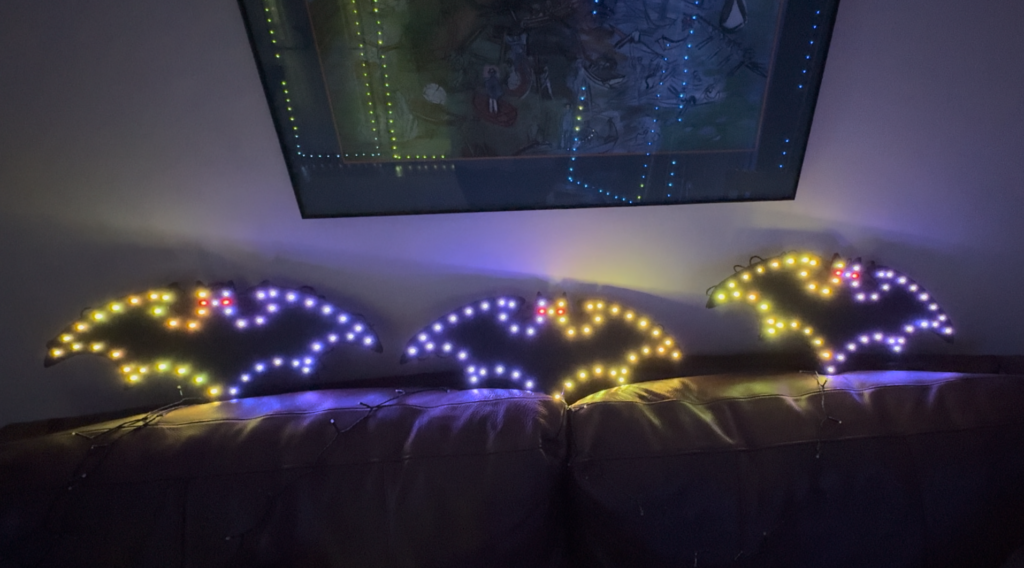
Here’s a photo of 3 of the 4 bats while I was testing them. You can just see the “null pixels” that are not lit connecting them. In reality, I hang the bats in a tree for the Halloween shows, and I actually include the null strands in the show as extra lights on the tree. So they don’t really go to waste.