RGB Holiday Lighting – General Tips & Tricks
As an Amazon Associate I earn from qualifying purchases.Thank you for supporting this site by purchasing through the links below!
Random stuff to think about related to light shows
- Cut power to your controllers when they are not actively running shows — including Twinkly controllers
- Many WS2811 controllers continue to send power to the lights even when they are “off” – cutting power saves energy and reduces strain on lights and controller
- Twinkly controllers are not replaceable — cutting power at the source reduces the risk of damage due to power surges
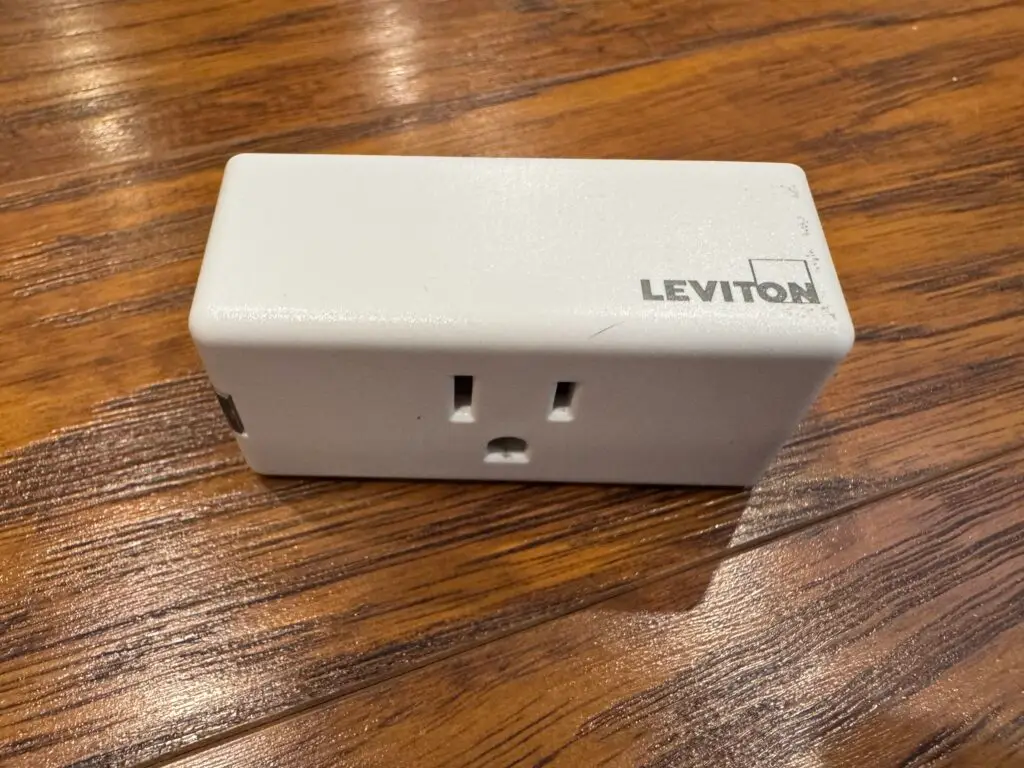
- You could do this manually or via timer, but I prefer to use home automation hardware — specifically Leviton Decora Smart Plugs (mini plug-in switch); these work on WiFi, are compatible with Alexa/Google /HomeKit/Matter, don’t require a hub and can be programmed to turn off and on whenever you want. I have also created a plugin that allows Falcon Player (FPP) to control them directly, so they can be perfectly synced with your shows. Note: The white Leviton plugs are NOT designed for outdoor use — I have them in my garage with an extension running to the controllers. They do have a newer (black) outdoor rated version available here from Amazon.
- Use static IP addresses for anything light show related on your network, whether using WiFi or ethernet
- Set static IPs using your router software (will vary by manufacturer – consult their instructions)
- On most routers, you need to find the IP address list, and you can often just bind whatever dynamic IP the router assigned using DHCP permanently (even season to season)
- Do this for all of your controllers and FPP instances (Raspberry Pis or Beaglebones)
- If you don’t do this and the IPs change dynamically, you will lose visibility and control of that device until you fix it
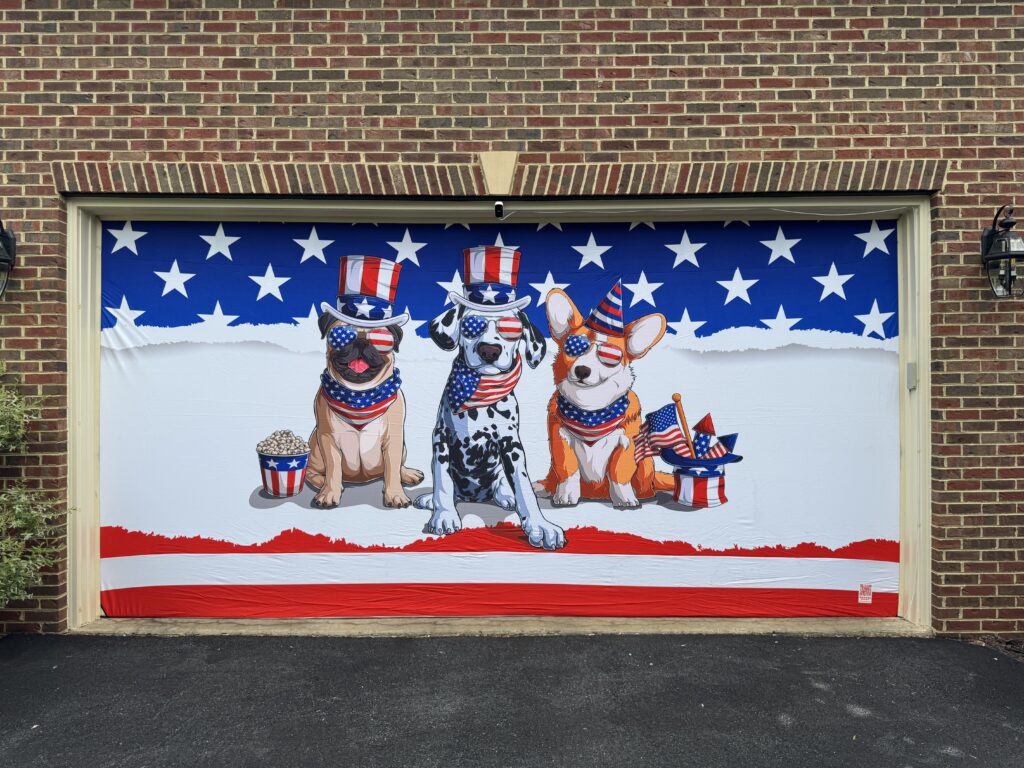
- I decided that our holiday display looked kind of boring during the day, so I was looking for ways to spruce it up:
- Discovered Garage Door Covers — basically stretchy spandex material with various designs (even custom) that goes over your garage and/or front door that makes a big visual impact — these do not impact your ability to use the garage.
- Don’t forget to put out other “normal” decorations that you can see during the day
- Halloween: Pumpkins, witches hats and ghosts hanging from trees, scarecrows, etc
- Christmas: Wreaths (can be lit!), mailbox lights, small Christmas trees on porch, lanterns, candles in windows
- You will have a fairly significant investment in hardware sitting in your yard — you might want to consider security cameras for thieves or vandals if you don’t already have them. I haven’t had any problems (other than rabbits chewing through some wires), but you never know.
- Speaking of rabbits, I have had great luck using Liquid Fence (available on Amazon) deer and rabbit repellent to keep critters from chewing the wires. Since I’ve started using this, I haven’t had any chew-through issues. I spray it directly on low wires as well as ground nearby. You need reapply after it rains hard, so get a big bottle. This will save you headaches of splicing wires or replacing extension cables in the dark when you realize a chunk of your display isn’t working. Highly recommend!
- You also might want to invest in a whole house surge protector like this model from Leviton. I put one of these in years ago to protect my home automation gear (the home control switches are wired in, so regular surge protectors don’t help). This will also protect your expensive holiday light controllers, Raspberry Pis and all of the other electronics in your house from power surges.
- Back up your show directories on someplace other than your primary hard disk! I prefer iCloud Drive, but others successfully use Dropbox, OneDrive and other similar cloud services. Using a cloud drive also enables you to access your xLights sequences from multiple computers (for example if you have multiple people working on them).