
As an Amazon Associate I earn from qualifying purchases. Thank you for supporting this site by purchasing through the links below!
Using Props With Twinkly Strings
Coro Props (corrugated plastic props) – including singing props!
Using coro props with Twinkly works great, but it can be slightly more complicated to set up than with WS2811 pixels. On sets of 250 Twinkly lights or greater, the strings are split so a set of 600 is really 2 strings of 300 coming off the controller. For each controller, the Twinkly pixels are numbered sequentially in the case of a 600 string, one strand would be pixels 1-300 and the other would be 301-600 and each Twinkly pixel is effectively serial numbered 1-600 in the set (these are not labeled on the strings). When using Twinkly strings on a bush or tree, these numbers really don’t matter because you will use the 3D mapping feature in the Twinkly app which will automatically build a model of the bush or tree containing those pixel numbers that you can import into xLights. With a coro prop, the pixels must be inserted in the order that the prop designer designates, following the wiring diagram from the custom model in xLights. The prop maker will supply a file called an xModel that you import into xLights as a custom model. Before you wire the prop using a split set of twinkly lights you need to figure out which strand starts at pixel #1, otherwise you risk re-doing all of the work if you have it backwards. Pushing Twinkly bulbs into coro is no picnic (wear gloves), so you really want to get this right the first time!
How-To Guides for setting up props using Twinkly Strings – choose your scenario below:
- How to identify pixel #1 – do this first if using Twinkly Strings of 250 lights or more
- Single Prop using single strand (Twinkly String <250 lights)
- Multiple Props using single Twinkly controller
- Single Prop using two strands (Twinkly String 250 lights or more)
- Single Prop using multiple Twinkly controllers
- Mounting coro props (keeping them from blowing away!)
Twinkly Props
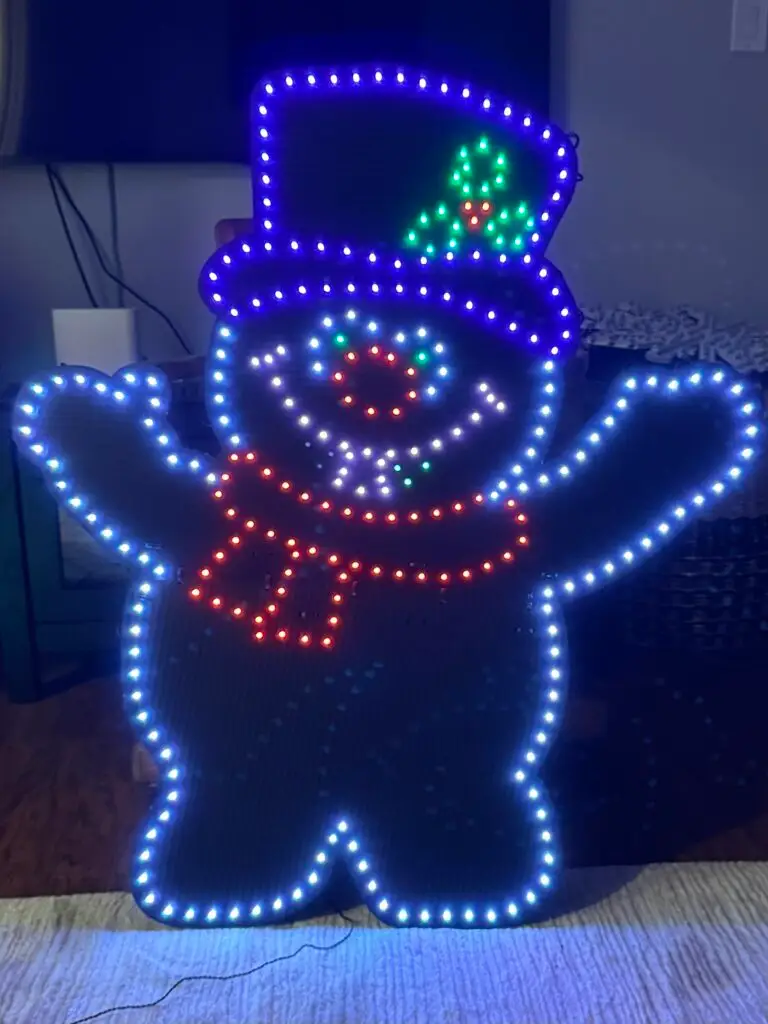
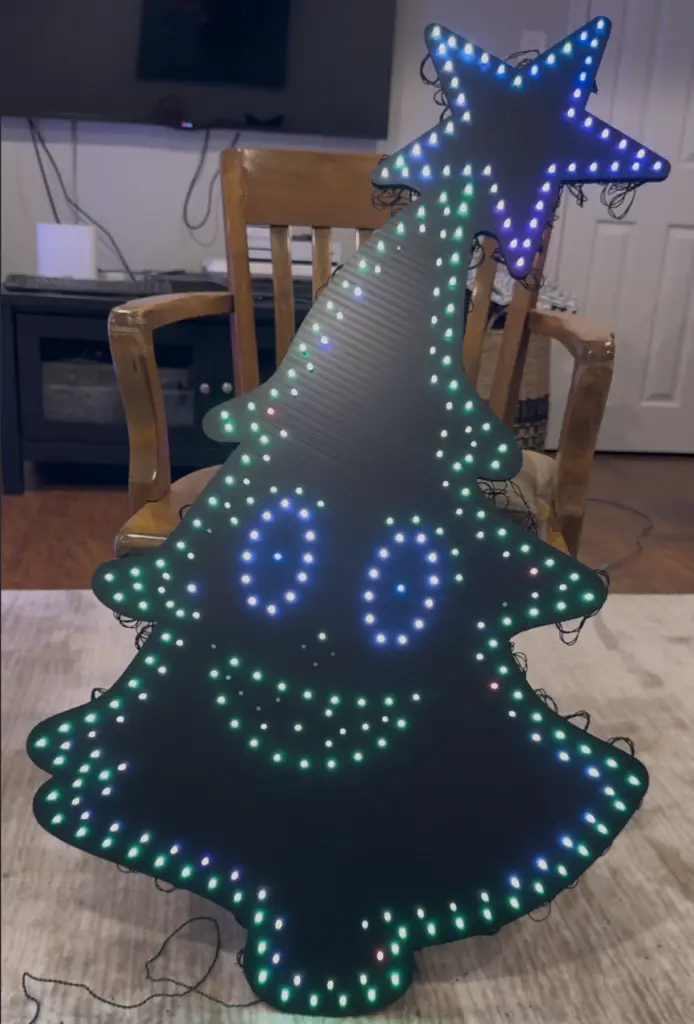
In this example, the singing snowman is pixels 1-300 and the tree is pixels 301-600 — both using the same Twinkly controller and custom models from Charlee’s Props. If you had a single prop that uses 600 bulbs, you would need to make sure you start at pixel #1 per the xModel (the first bulb closest to the controller on the string you marked in the process above). The second string would start at bulb #301 in the xModel.
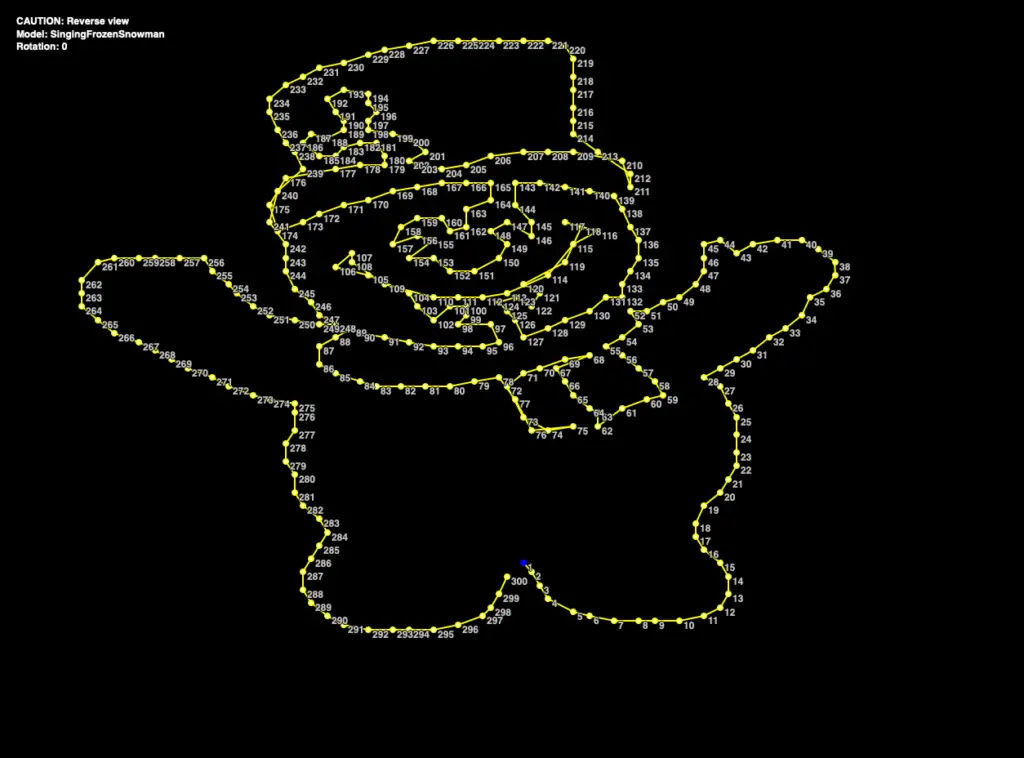
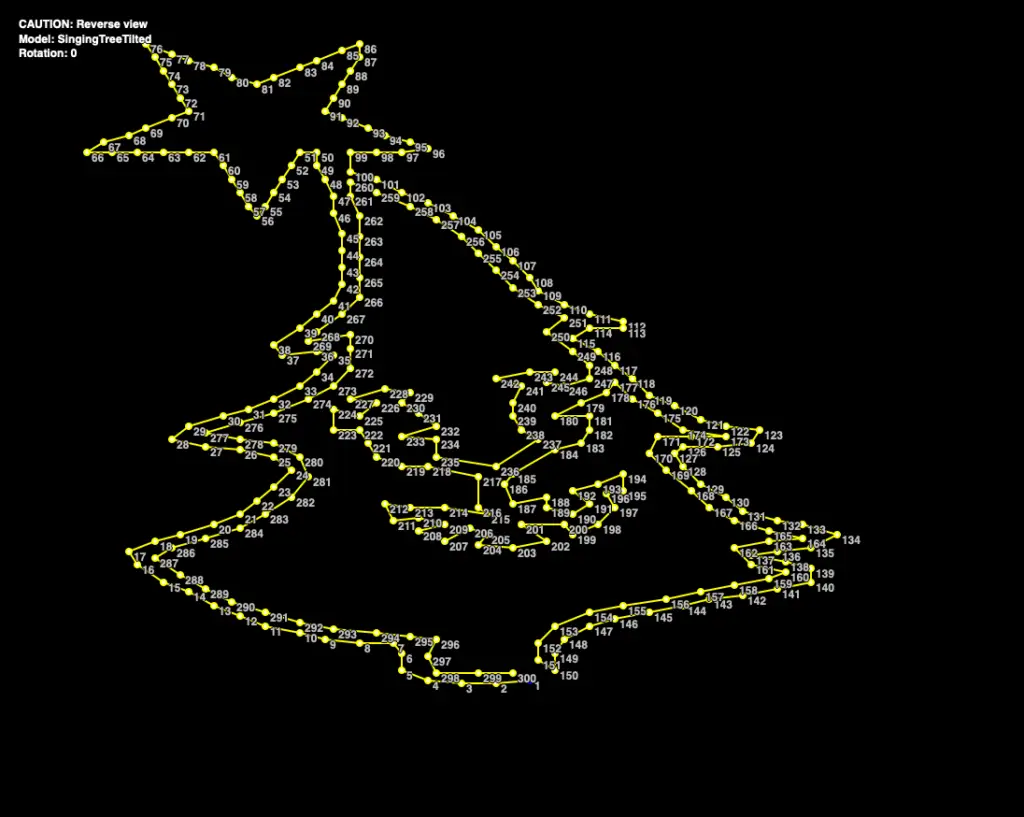
Here are the wiring diagrams from xLights (click to enlarge). Pixels are pushed from the back of the coro, so these images are always the reverse side of the prop, and what you follow when pushing pixels or Twinkly bulbs. For pushing, I highly recommend a thickish pair of work gloves so you don’t develop a blister on your thumb after pushing a few hundred pixels. For standard 12 mm pixels you can buy a special “pixel pliers” (well worth it), but I have not seen anything like this for Twinkly.
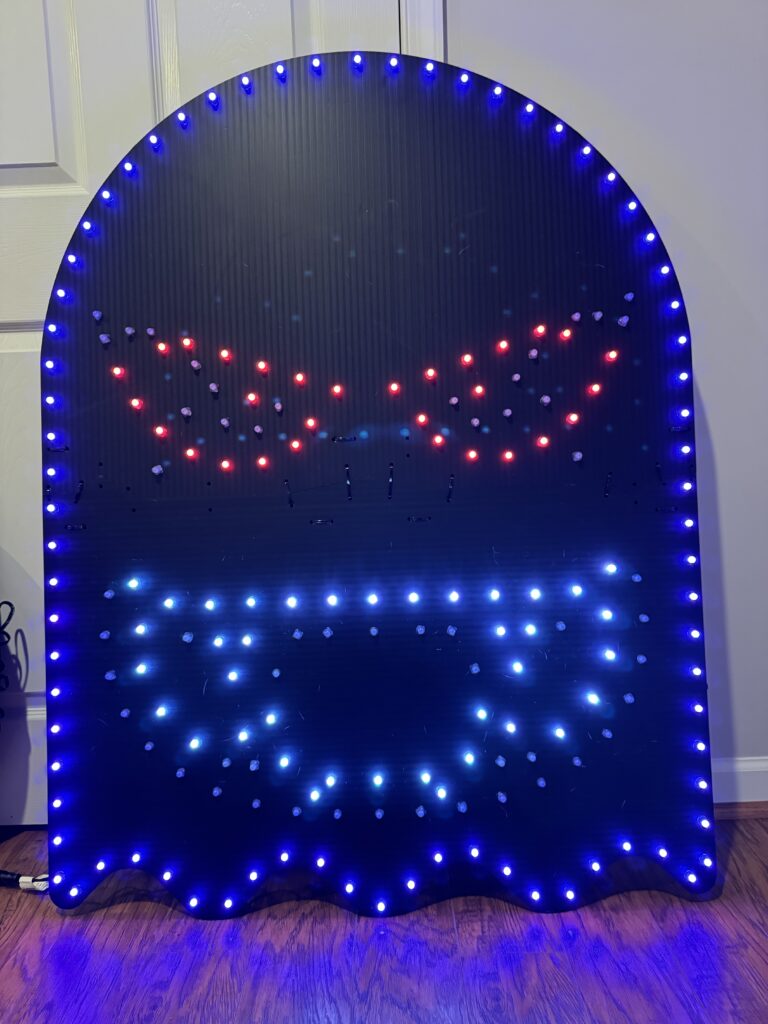
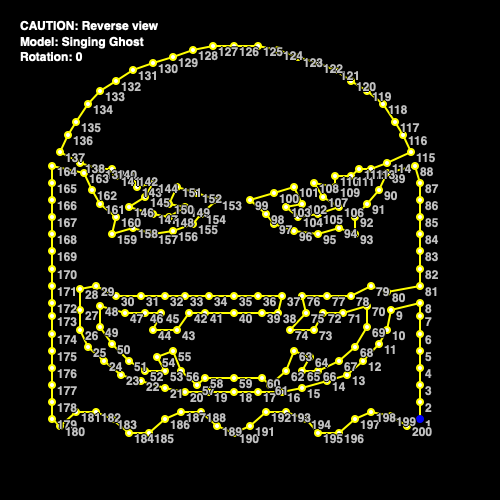
For another comparison, here’s a Halloween prop using standard WS2811 bullet pixels which are 12mm across vs. 4.3mm for the Twinkly. Unless you are standing very close to the prop, you can’t tell the difference in pixel size when they are lit (especially in the dark)!
Door Covers
While not directly related to the lights, garage door and/or front door covers deliver high impact for little effort and serve as a great background for the lights! See our article on garage door covers!
MegaTree
While it would be feasible to build a MegaTree using Twinkly strings, for cost and performance reasons I highly recommend that if you want a MegaTree you should explore doing so with WS2811 Pixels or Seed Pixels. Please see my article on MegaTrees for more information. MiniTrees (essentially tiny MegaTrees ~3-4 feet tall) make much more sense using Twinkly Strings.