Using Twinkly and WS2811 Pixels in the same light show
So, you want to use Twinkly lights and WS2811 pixels in the same show. Here’s how to do it. The good news is that on paper, this should be pretty easy, but there may be some non-intuitive fidgeting around in xLights at first. Once your controllers are all set up correctly in xLights, Twinkly and WS2811 pixels will behave exactly the same way for sequencing. The only real difference will be how you assign props to the controllers — WS2811 props will be drag and drop using the “visualize” button on the controller screen, vs Twinkly you will need to manually choose the controller and possibly start channel (for Twinkly controllers with more than one prop) in the layout screen. The other consideration is that Twinkly controllers max out at 20 Frames Per Second — so you should sequence your light shows at 20 FPS, even though WS2811 controllers can handle 40 FPS under some circumstances..
- If you haven’t already, set up the Twinkly controllers in xLights using these instructions
- Set up your WS2811 controller in the xLights controller screen (either use “discover” button or set up manually)
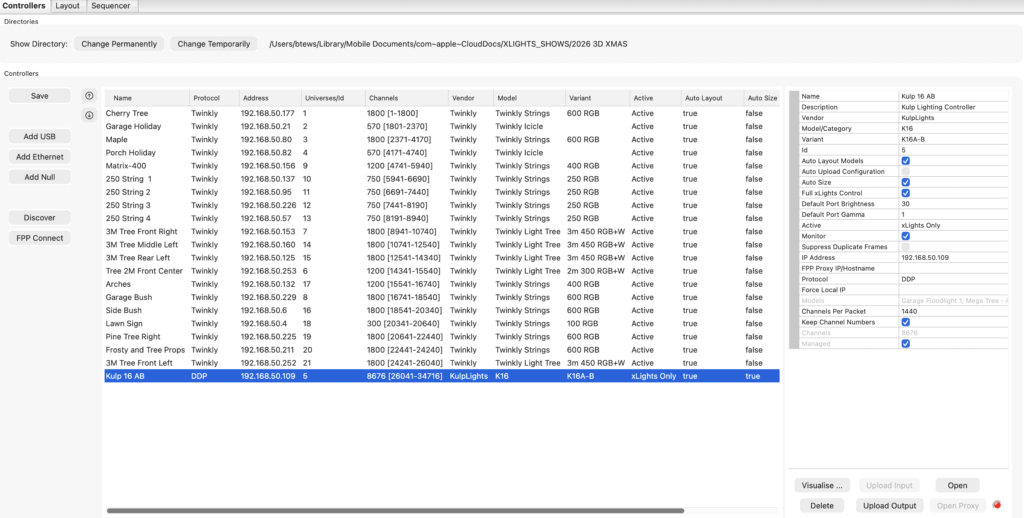
- Once your controllers are set up, you should see something similar to the screenshot below
- If you look closely at the various controllers, all of the Twinkly controllers are set to “active”, but the Kulp 16 AB (WS2811) is set to “xLights Only” – this is the only way I’ve found to make xLights work correctly with Falcon Player (FPP) using both Twinkly and the Kulp controller
- You can set the WS2811 controller to “xLights Only” in the right hand menu under the “active” field
- I don’t know if this issue is unique to Kulp controllers because of the on-board FPP instance (I run the Kulp in “remote” mode, with my primary FPP instance on a separate Raspberry Pi) — but I have found others online with the same issue.
- Hit save
- Set up and map at least one prop on a Twinkly controller and one on your WS2811 controller
- Click here for Twinkly prop setup instructions
- Click here for WS2811 prop setup instructions
- Create a test sequence using a Twinkly prop and a WS2811 prop
- Use FPP Connect in xLights to upload a simple test sequence to FPP to see if everything works