TWINKLY HOW-TO GUIDE
How To Import 3D Twinkly Models Into xLights
One of the most powerful things Twinkly lights are capable of is using your phone camera to create “free-form” 3D models of your lights (this also works for 2D models). You can throw Twinkly Strings on a bush or wrap a tree, and in a few minutes use your phone to map the lights. Normally, Twinkly expects you to use that model with their app to create effects with the lights — which works fine, but is not really a light show. That 3D map is stored on the controller for that Twinkly device, and can be imported into xLights into a custom model, so you can add it to your light show and apply effects to it. Here’s how to do it.
- Using the Twinkly app on your phone, capture the 3D model of the set of lights
- Follow the instructions in the app
- Use a tripod!
- Individual pixels will turn green when they have been successfully captured; others may show orange or red that it couldn’t register
- Depending on the shape and complexity of the object you may need to take a number of photos
- It is not critical that ALL of the pixels turn green — just the majority
- When the map is all or mostly green, make sure it looks good in the rendering in the app, then save it
- Ensure the Twinkly controller is powered up and on your network (lights don’t need to be on)
- Open xLights on your computer and go to the Layout Tab (must be on same network as lights)
- Create a new custom model, by clicking the custom icon (6th from the left) at the top of the layout visualization pane
- After clicking “custom” icon, click and drag in the visualization to add the empty model (will show up as a square)
- Don’t worry about positioning it or sizing it yet — can be anywhere
- On the left in the “models” list, you should see a new model called “custom” – click on it if not already highlighted
- Rename the model to whatever you want
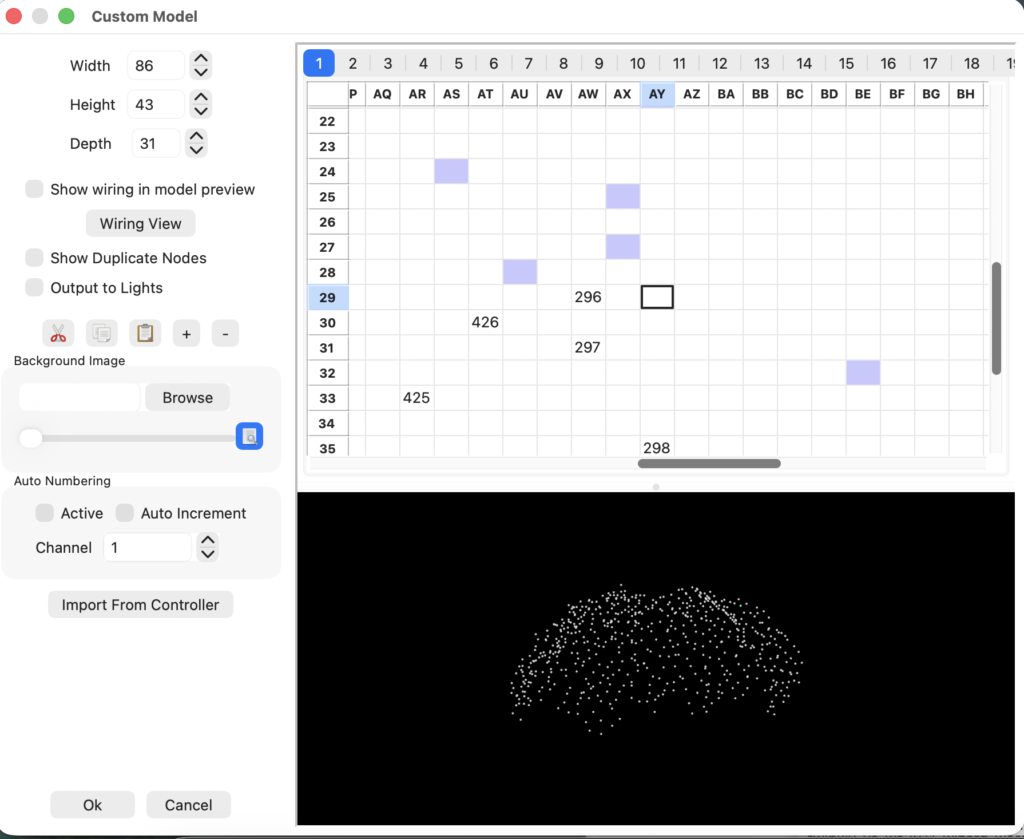
- Under “model data”, click the ellipsis (3 dots) to modify the model (which is currently empty)
- Click “Import From Controller”
- Choose the Twinkly controller containing the model
- Click “OK”
- Make sure the model looks correct in the visualization at the bottom
- If it looks “cut off” (parts are missing), you may need to manually adjust the width, height and depth of the model
- Before you do this, we need to erase what’s there — because if you import again, it will import on top of any existing data
- Set the depth to 1
- Click the box in the top right corner of the matrix to select all and hit delete
- Set the width, height and depth to something appropriate to hold your model (may need to experiment with this step more than once) — will be based on how many lights on string and how they are strung
- When the model looks good, click OK (should look something like image below — 600 string on a small tree)
- Position and size it where you want it in the layout like any other model
- Finish setting up the model like you normally would (set controller or start channel, etc)
- Hit “Save”
- Throw the model into a test sequence and test it out to make sure it is rendering correctly
- Test left to right sweep
- Test upward or downward sweep
- If tests look backwards, you may need to rotate or flip the model in the layout so they work correctly
- Once everything looks good, save it again and you are good to go!