
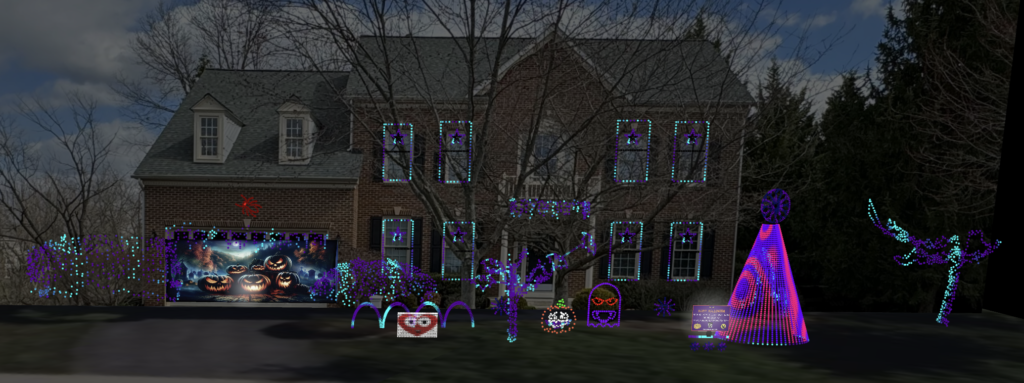
xLights sequences below are free to download! Click the “Watch Video” link to see how it looks on my house – this will be a rendering from xLights if it’s new since the last holiday season.
- Download sequence file by clicking “download” link
- Zip file will contain the xLights sequence file (.xsq) — unzip it where you can find it (show directory is good)
- Legally download the appropriate mp3 file (can’t distribute with sequence due to copyrights – mp3s are cheap)
- You will need to create a new musical sequence in xLights, choosing the mp3 as the audio soundtrack
- Choose 20 frames per second (FPS) — this is a limitation of Twinkly lights
- Choose “All Models”
- Click “Done”
- Save your empty sequence in your show directory
- With your empty sequence open in xLights, go to the import menu at the top of the screen, then choose “import effects”
- This can be a little tricky, and may require some experimenting; you will likely need to clean some things up after the import is done to get it looking the way you want
- You need to map the models from my show shown on the right to your show on the left — you will likely have different model and/or group names; can just click and drag
- Some things are easier than others, like arches , windows, matrixes or MegaTrees; others you need to use your judgement
- Singing models can be mapped to other singing models; for example you have a singing tombstone, but no ghost, you could map the singing host to the tombstone
- You can map the models on the right to multiple models on the left
- When you are finished, click “OK”; you may get a warning about saving the mapping – you can save if you would like (I never use this)
- Click the “render all” button
- Hit “play” and test the sequence!
- Make any tweaks / changes to make it work best with your layout
- Enjoy!