- Set up your Twinkly lights per manufacturer instructions and test that they work with Twinkly app
- Ensure that you go into your WiFi router setup and assign static IP addresses to each Twinkly device
- Download and install the correct version of xLights for your operating system from https://xlights.org
- Open the xLights application on your computer
- On the first startup, xLights should ask you to create a “show folder” – this concept is very important – the folder will contain everything pertaining to a particular “show” – think of a show as being your “2026 Halloween Show” or “2026 Christmas Show” – you will likely have different props (bats vs. snowmen) for each holiday. The show folder will contain the model for each show. You can name this anything initially for test purposes, but will want to develop a standard naming convention so you can have multiple show folders for different holidays or displays and just switch between them in the software.
- Make sure your twinkly devices are powered on and connected to the network
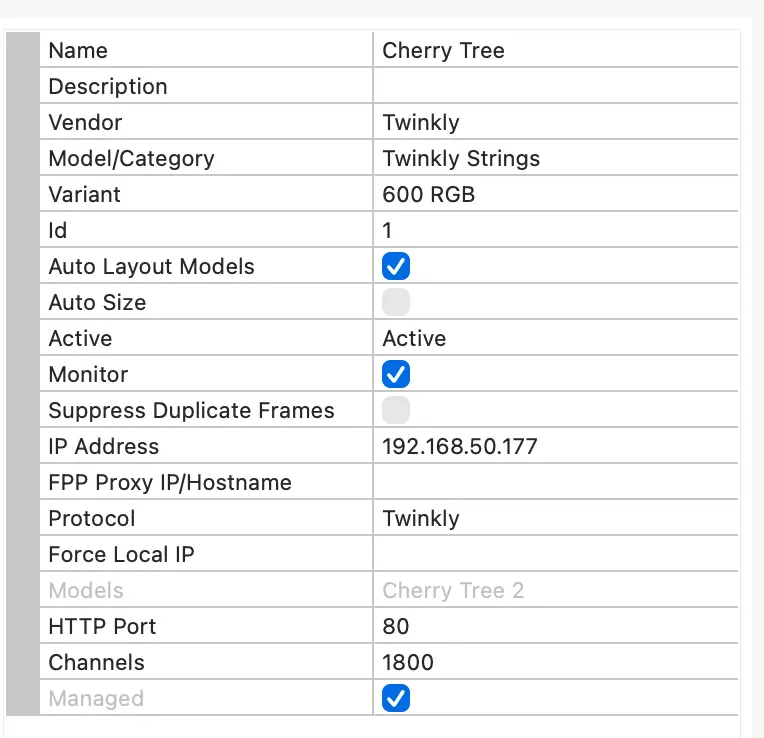
- On the “controllers” tab in xLights, click the “discover” button – it should discover all of your Twinkly devices automatically — you will see each device listed as a controller with it’s unique IP address — something like THIS (probably with less stuff)
- Make sure all of your Twinkly devices are showing up and xLights detected the correct number of bulbs and type of device (i.e. string vs. icicles vs. light tree) – when you click on each device in center pane, you will see details of that controller on right (sample in bullet #9)

- If you click on one of the devices in the middle pane, there should be a green light in the bottom right corner of the screen — that means xLights see the controller; if it’s red, you have a problem
- Channels may pre-populate, but I have seen it be incorrect. The channels are the number of bulbs times 3 for RGB lights and times 4 for RGB+W lights — make sure this is correct.
- If everything shows green, your Twinkly controllers are now setup! If you add more, just go through the discovery process again and the new ones should appear.