WiFi Troubleshooting
As an Amazon Associate I earn from qualifying purchases. Thank you for supporting us by purchasing through the links below!
Jump directly to troubleshooting infographic
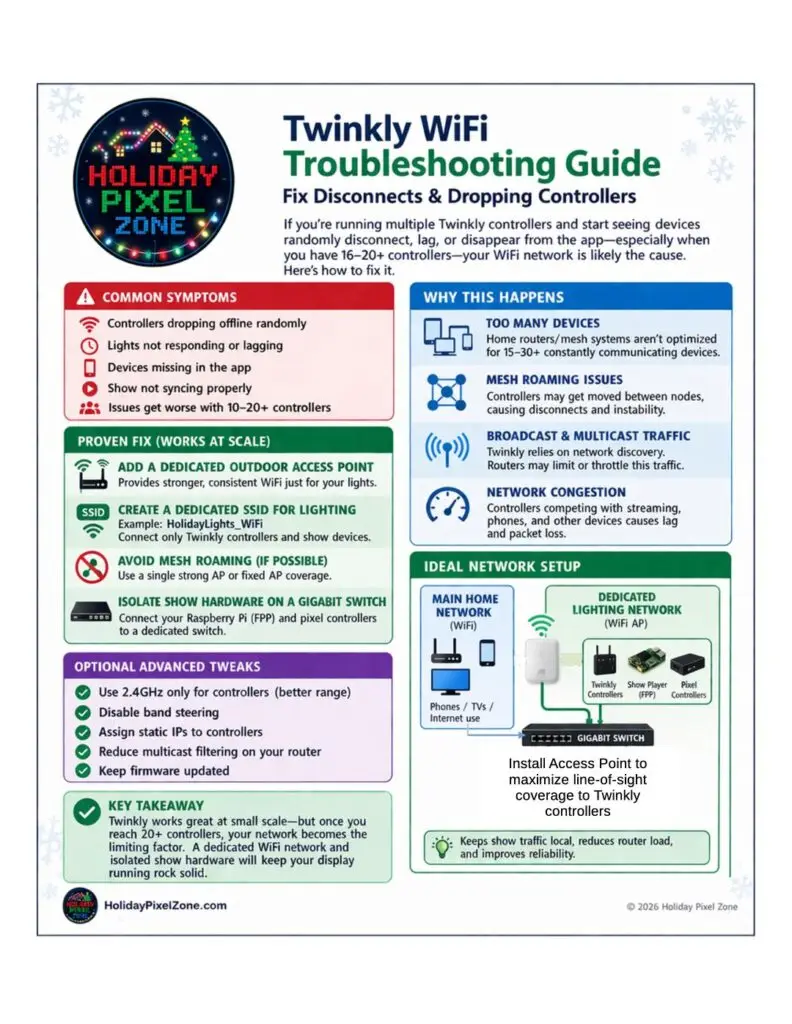
One of the biggest issues I’ve had with Twinkly lights is effects lagging or controllers dropping off the network entirely. Once I hit roughly 16-20 Twinkly controllers, I started having problems. I tried adding an extra node to my indoor mesh router setup, but that didn’t entirely solve the problems. I tried lots of other things, but finally solved it by installing an outdoor (waterproof) WiFi Access Point with an SSID dedicated to Twinkly, plus isolated everything related to the light shows as well as my DIY pixel controllers onto a gigabit ethernet switch (plug switch into main router and anything light show related into switch, including WiFi AP). Try to install the WiFi AP so it has line-of-sight to as many of your Twinkly controllers as possible.
The reason you want all of your light show gear plugged into the gigabit switch is that by doing so, none of the network traffic for the show will end up on your main router competing with resources like streaming TV, Xboxes, Zoom, etc — the switch will handle all of the traffic by itself (since it doesn’t need internet access) — this can make a huge difference.
I put together a WiFi troubleshooting guide below. All of these tips would be equally applicable to a setup with a large number of WLED controllers on a WiFi network. Remember that Twinkly devices can only use 2.4 GHz WiFi (NOT 5 GHz). I find it helps to go into your router settings and split out a separate SSID just for 2.4 GHz, and connect to that, if you’re not using a separate light show network.
Another potential solution to network congestion caused by too many Twinkly devices is to explore using middleware to handle the Twinkly network traffic — see our article on Twinkly Master vs. Native xLights Support.
Here’s an Amazon link to the TP-Link access point I have been using: TP-Link Omada Long Range Outdoor Access Point – WiFi 6 AX1800 Dual Band. It’s power over ethernet, so you don’t need to have AC power near where you mount it. This purchase was a game changer in terms of Twinkly reliability. TP-Link no longer makes the switch I’m using, but this one will be perfect. TP-Link 8 Port Gigabit Ethernet Network Switch