Troubleshooting Twinkly Setup
- If no Twinkly devices are detected, please double check that the computer running xLights and the Twinkly controllers turned on (with green dot in Twinkly app) and are connected to the same WiFi network
- You may need to manually enter the information if they are not detected:
- Make sure you have the IP address for the Twinkly device you’re setting up
- Look in Twinkly app; go to “devices”
- Choose right arrow next to device you are connecting
- Choose the gear icon
- The IP address should be displayed
- Back to xLights Controller screen, click “Add Ethernet”
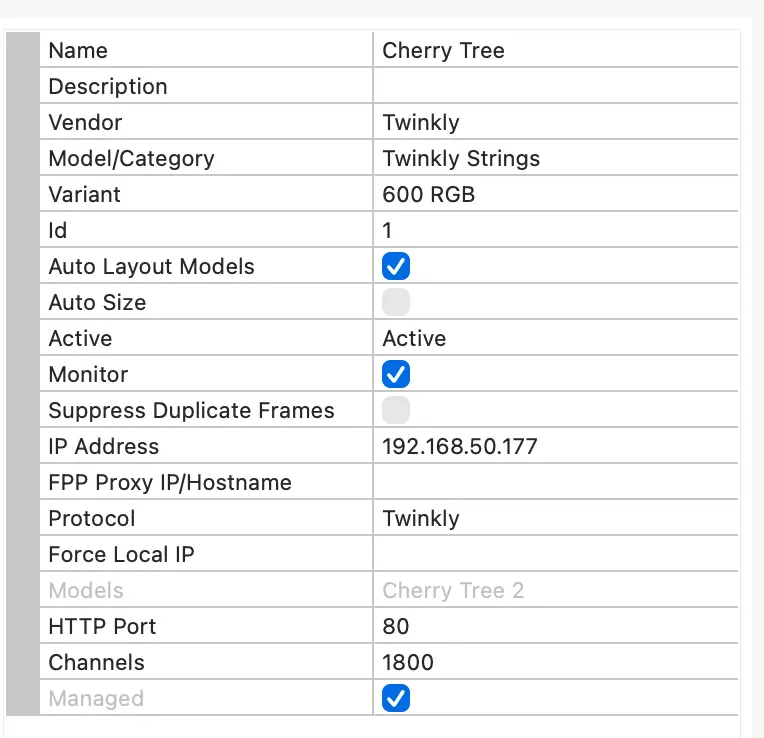
- You will see a menu on the right side of the screen that looks like the one below
- Enter a name for your device – something descriptive so you know what part it will play in the show
- Choose vendor “Twinkly” from drop down menu
- Choose model from dropdown menu – in this case “Twinkly Strings”
- Choose variant — which will be string length (number of pixels) and whether it is RGB or RGB+W
- Enter the IP address
- Auto layout and monitor should be checked
- Protocol should be Twinkly
- HTTP Port should be 80
- Channels may pre-populate, but I have seen it be incorrect. The channels are the number of bulbs times 3 for RGB lights and times 4 for RGB+W lights — make sure this is correct (channels represent each LED element in the pixel – RGB have 3 LEDs, RGB+W have 4)
- Look for the green light at the bottom corner of the screen – this means xLights is talking to the controller
- Repeat for each Twinkly controller as needed
- Make sure you have the IP address for the Twinkly device you’re setting up